
This guide will walk you through how to run the tools for Authoria - Requiem Reforged in case you modified the list and need to regenerate their outputs.
This guide covers:
- BodySlide and Conversions
- Pandora
- Reqtificator
- NPC Plugin Chooser Tool
- Synthesis
- LOD Tools (ParallaxGen, Grass Cache, xLODGen, TexGen, DynDOLOD)
BodySlide and Conversions#
When do I need to rerun these tools?#
- Run BodySlide if you added armors that support 3BA, HIMBO, or UBE to the list.
- You should build meshes in BodySlide before running the UBE Converter Tool.
- If the armor mod you added ships with zeroed prebuilt meshes, then you don’t need to build the meshes again with BodySlide.
Running BodySlide#
Tip: It is highly recommended to create a new output mod dedicated to your BodySlide builds.
-
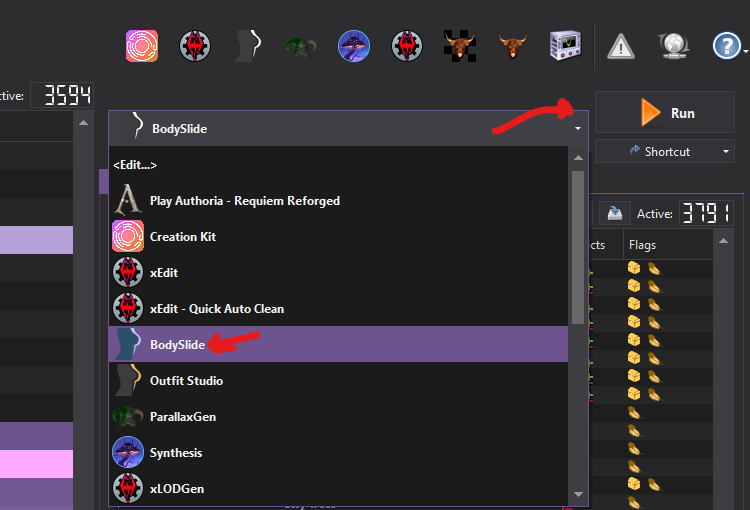
Click the dropdown menu in MO2, select Bodyslide, and hit Run.
-
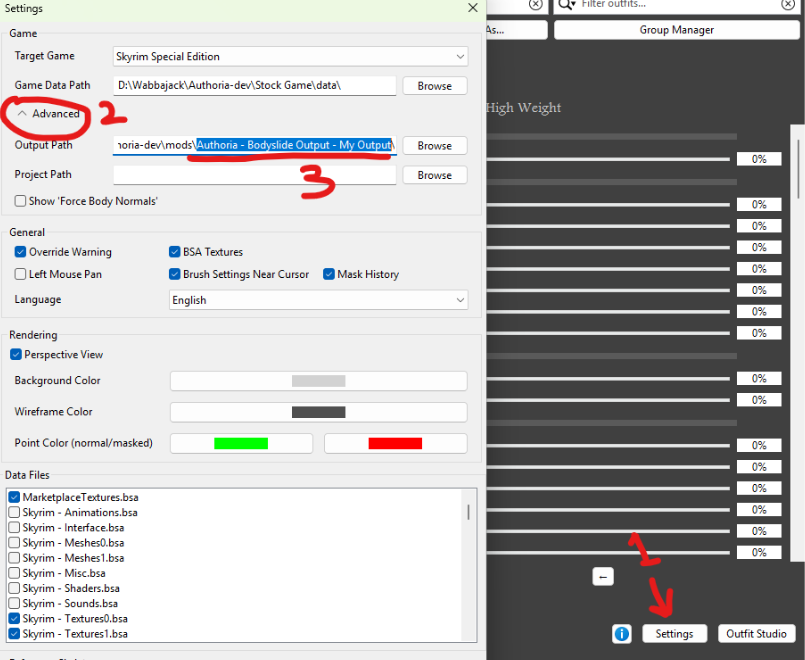
Click the Settings button at the bottom right of the tool, expand the Advanced section, point the Output Path to your dedicated output mod, then hit OK.
-
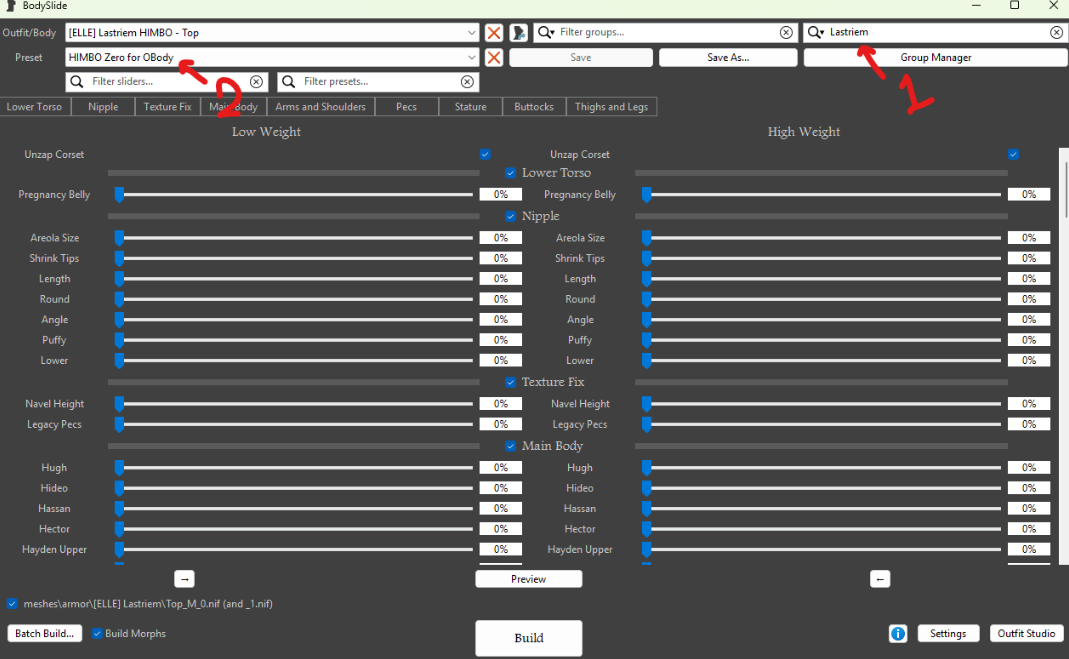
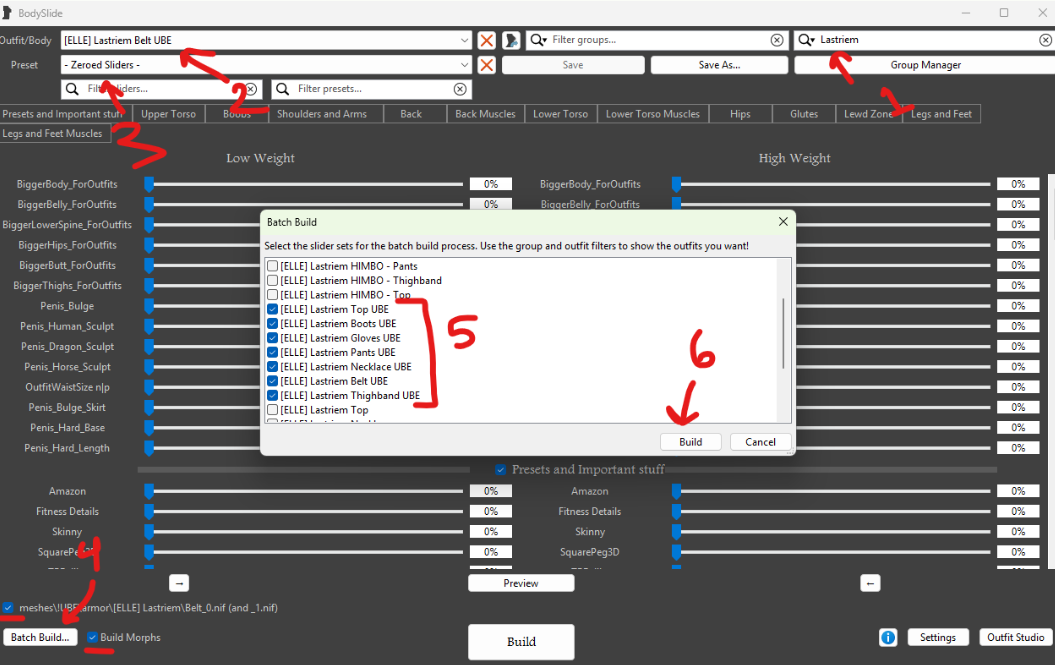
Search for the outfit you want to build — in this example, I am building [ELLE] Lastriem. Always ensure the two boxes at the bottom left are ticked.
-
If the armor is made for HIMBO, make sure to select the “HIMBO Zero for OBody” preset before building.
-
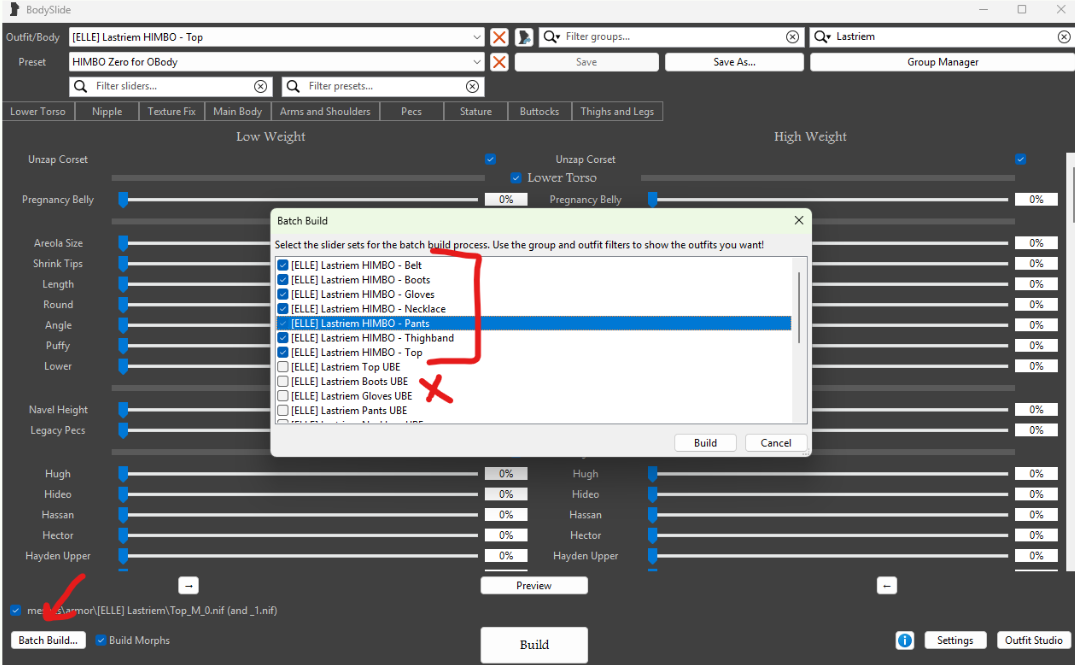
Click on Batch Build, select only the armors that are for the HIMBO male body, then press Build. If it errors, try again; if it still errors, double-check your output paths.
-
If the armor is made for UBE/3BA, make sure to select the ”- Zeroed Sliders -“ preset before building, then repeat the same steps.
-
Rinse and repeat. Once you are done, exit BodySlide, refresh MO2, and ensure your BodySlide output wins all conflicts.
Note: You don’t need to rerun ParallaxGen, or any other tool, after building outfits in BodySlide.
-
Day’s UBE Converter#
- After running the converter, you don’t need to rerun any other tool.
- I usually run this as the very last step before compilation.
- Only run this tool if you added an armor set that does not have UBE support. Otherwise, you should use a proper UBE conversion and build it in BodySlide.
- Est. time: ~40-60 minutes.
- Close MO2.
- Navigate to your modlist installation directory, and go to
tools\CBBE to UBE. - Run
CBBEtoUBE.exe. - Copy and paste the path to your MO2 Output Mod.
- Run the tool
You can configure settings based on your use case, by default it only converts meshes. Enable texture conversion to convert things like racemenu overlays, the tool will take longer to run. You can also convert one/a handful of mods if you added just some armor mods. Note: You don’t need to rerun any tools after using the UBE Converter.
Pandora#
When do I need to rerun this tool?#
- Rerun Pandora after you add new animations or behavior files.
- The Nexus page of a mod usually says if it requires Pandora/Nemesis to be rerun.
- Disable the output that comes with the modlist if you are using a different one.
-
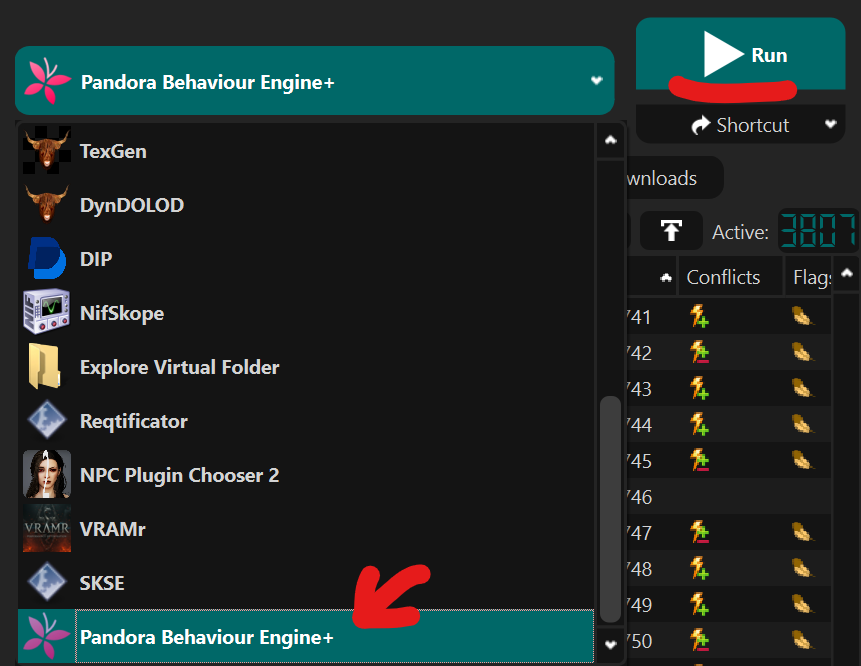
From the dropdown menu of MO2, pick and run Pandora.
-
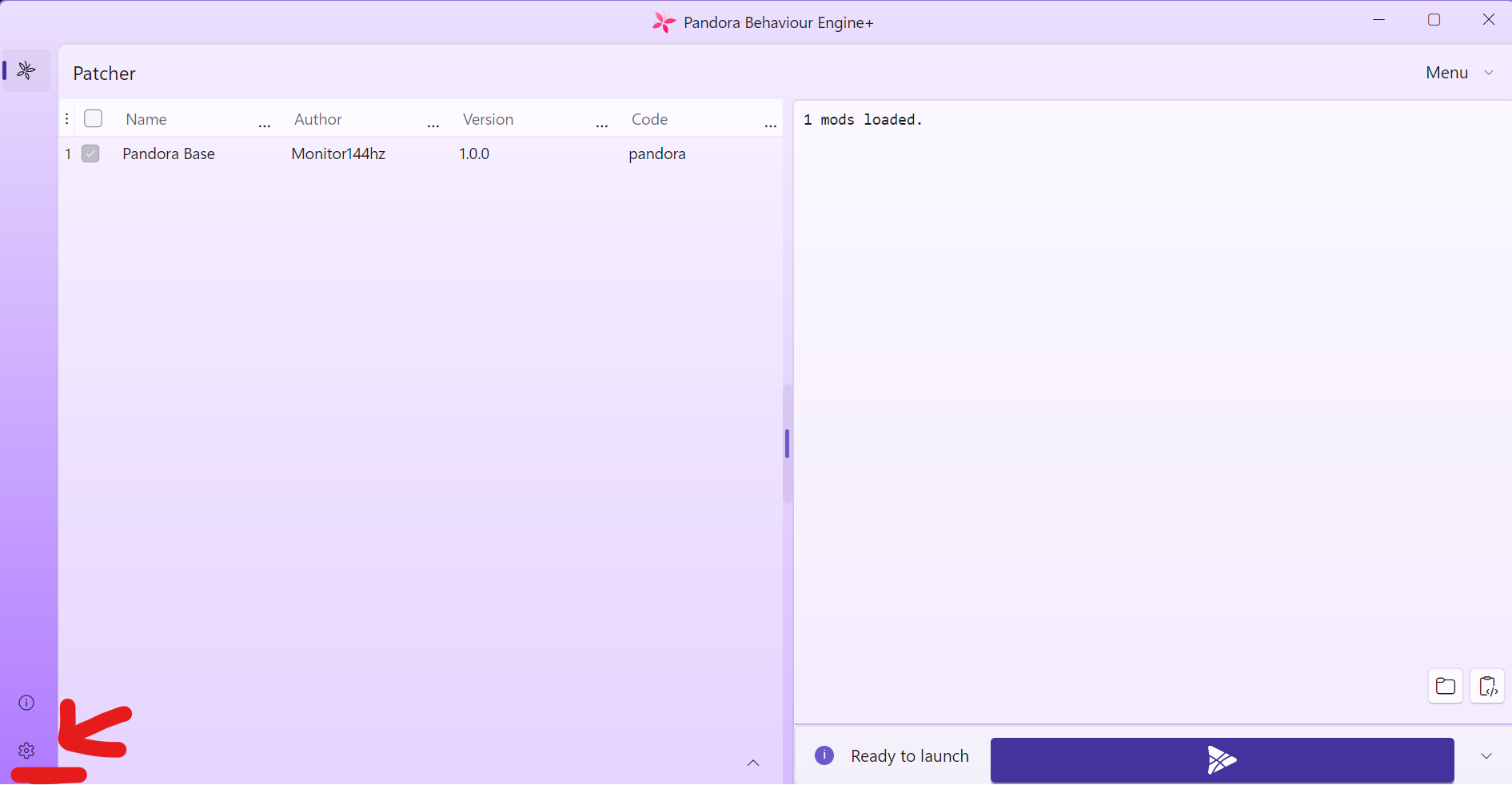
Go to the settings tab by pressing the gear icon.
-
Set the paths (Ignore this step if the paths are already setup):
- Set the Skyrim Data Path to
%ModlistPath%/Stock Gameand selectSkyrimSE.exe. - Set the Output Folder to the mod output you want it to go in:
- If you created a new output folder:
%ModlistPath%/mods/YourPandoraOutput - If you are reusing the output that comes with the list:
%ModlistPath%/mods/Authoria - Pandora Output - If you are reusing the output that comes with the list on the NSFW profile:
%ModlistPath%/mods/Authoria - Pandora Output - NSFW
- If you created a new output folder:

- Set the Skyrim Data Path to
-
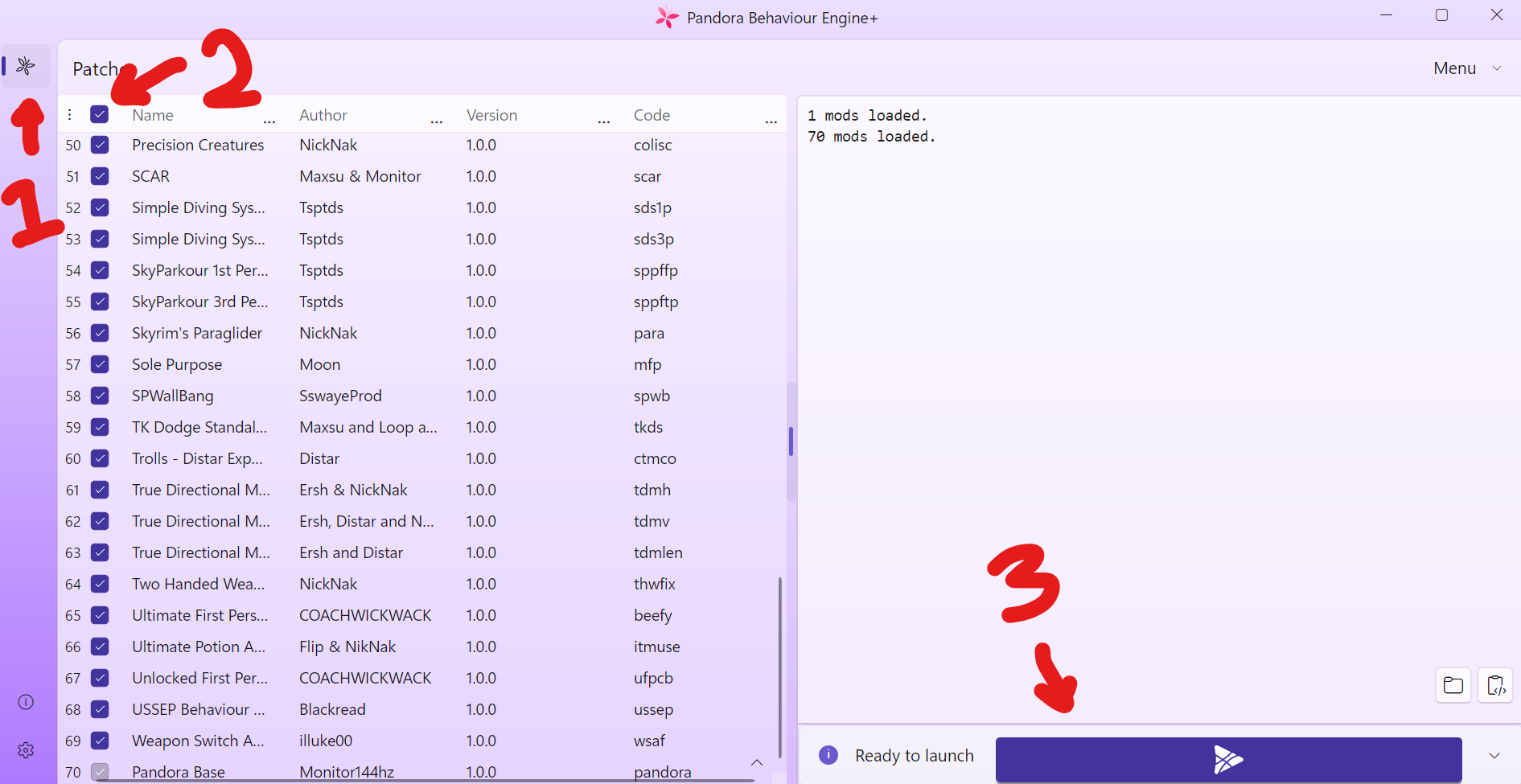
Go back to the main page by clicking on the butterfly, click the checkbox on the top left to select everything, then hit the Run/Play button.
-
Wait for it to finish, then exit. Make sure the output mod is enabled, then refresh MO2.
NPC Plugin Chooser Tool#
When do I need to rerun this tool?#
- Rerun this when you want to change the appearance of NPCs, or before rerunning the Reqtificator.
- You need to rerun reqtificator and synthesis outputs after running this tool.
First, you need to understand how Authoria splits the handling of NPC appearances:
- a) Named NPCs — these are NPCs that have one specific replacer for them. For example: Ysolda DF Edit NO SkyPatcher — this NPC replacer overhauls just Ysolda. For this reason, the mod is enabled, and Ysolda does not have a selection in NPC Plugin Chooser 2. This is to avoid copying her assets into the output and to manage disk space.
- The same applies to True Sons of Skyrim Refined, Men of Skyrim Refined, and some other NPC replacer packs. If something does not need a selection, it is handled through classic conflict resolution and winning conflicts in MO2’s VFS.
- b) Generic NPCs with multiple possible selections — most female NPCs that can have multiple selections are disabled and have a selection set through NPC Plugin Chooser 2.
- c) Face swaps — NPC Plugin Chooser 2 has a feature to swap the appearance of an NPC with another NPC. This is used heavily in Authoria.
If you still don’t understand, just follow these steps — they should walk you through adding an NPC replacer to the list, without any conflict resolution and with a simple tool rerun.
1) Adding a new replacer to the list#
1a. Disable all the plugins below Authoria - Output - NPC Appearances.esp
1b. Download and install the replacer into MO2, then disable it. For this example, I will go with this Sybille Stentor replacer.
- Select NPC Plugin Chooser 2 from the dropdown menu of MO2 and run it.
-
Go to the Settings tab and ensure the file paths are set correctly. You can also change the output path here — DO NOT change the plugin output name.
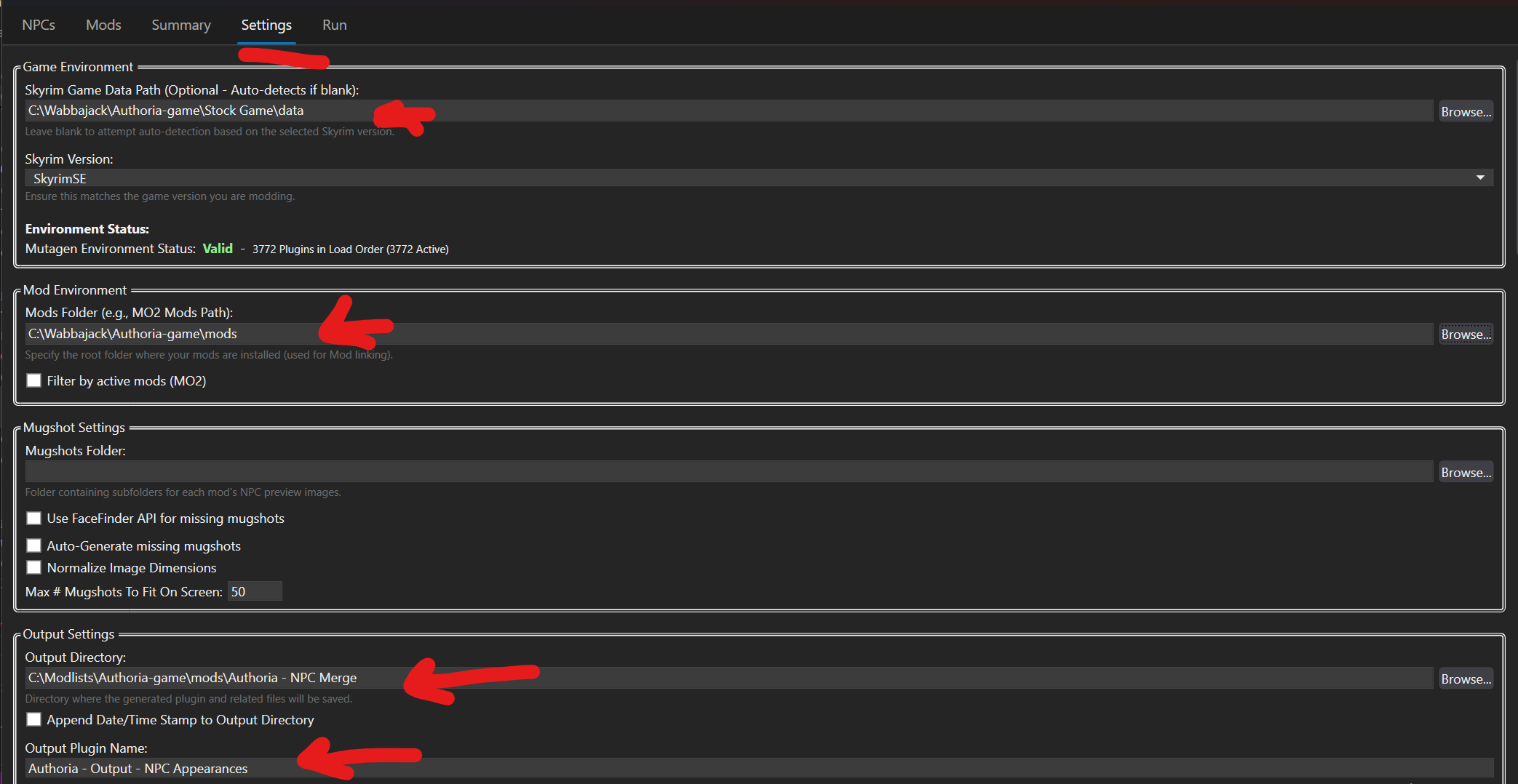
-
Go to the Mods tab and press Refresh All — this might take some time.
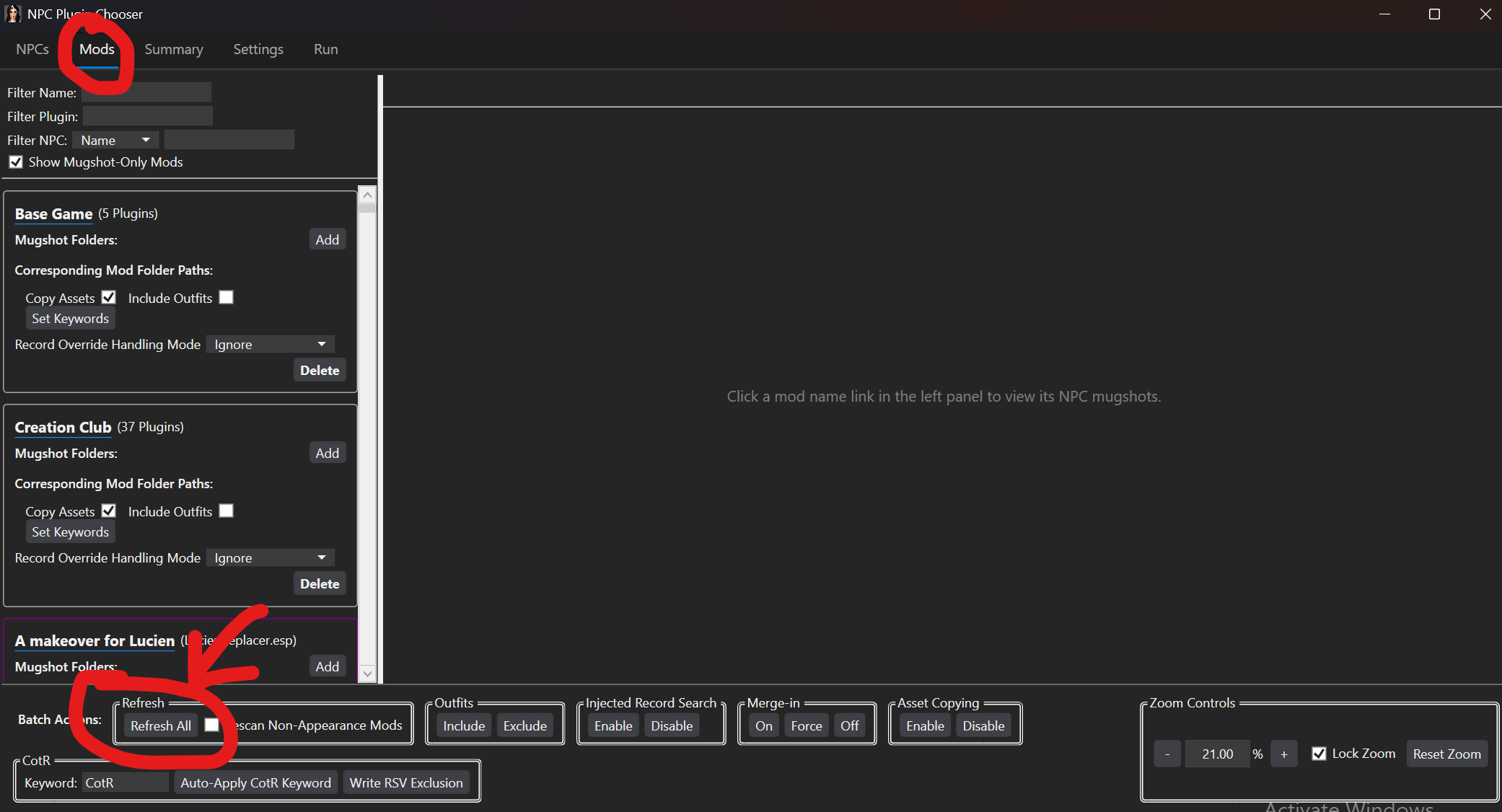
-
Go to the NPCs tab, and click on Import Selection.
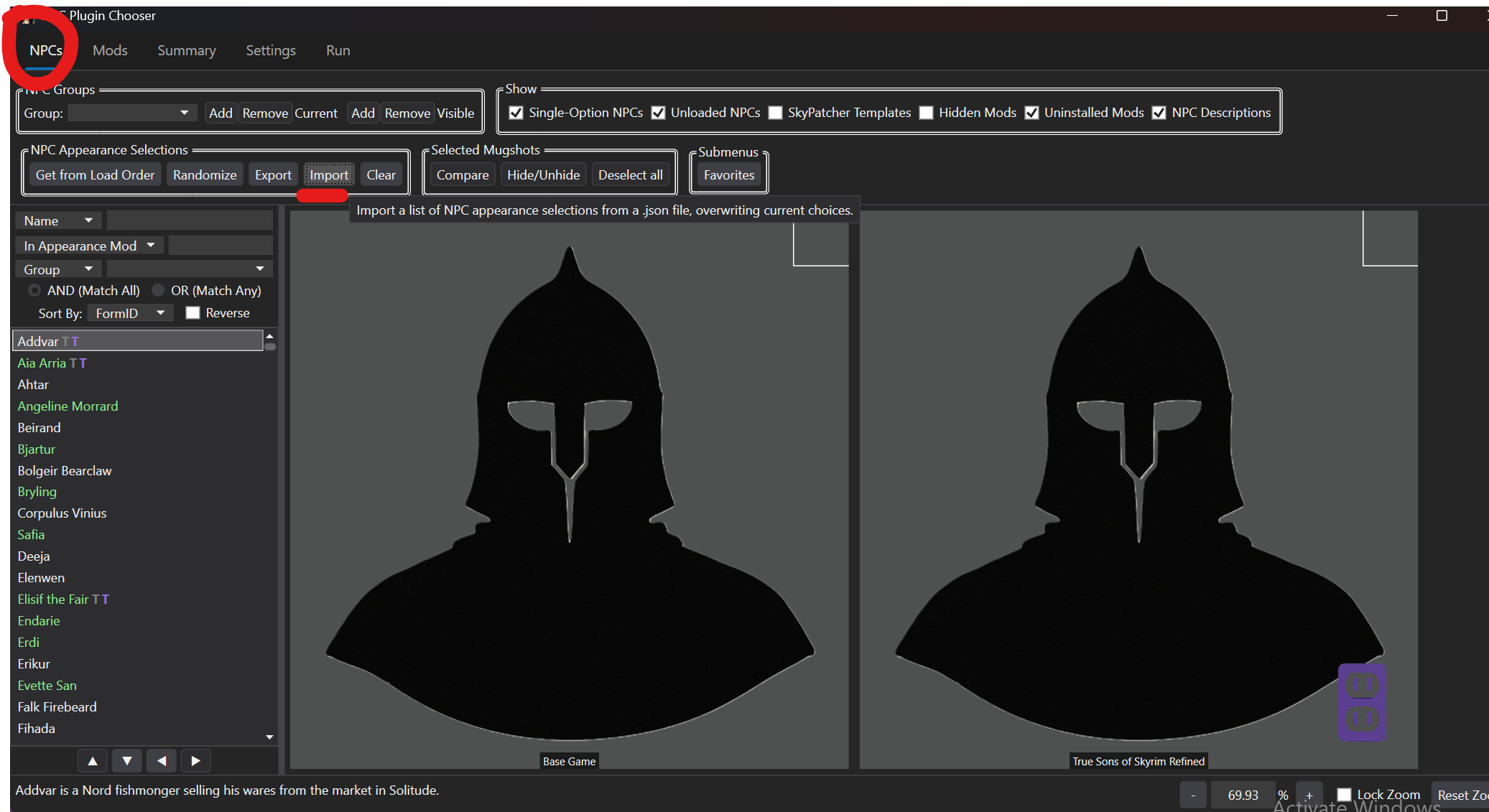
- Navigate to
%ModlistInstallation%\tools\NPC Plugin Chooser 2-1-6\NPC Merge Profileand selectAuthoria - MyMoreExpandedNpcChoices - Aaron.json. Press Yes to confirm, then OK. (At the time of writing this, there are 429 selections.)As of 2.9.9 you will get some errors when you import the selection, just ignore them.
-
Search for the NPC you want to replace — in my case it’s Sybille — and make your selection. (You can make multiple selections from here.)
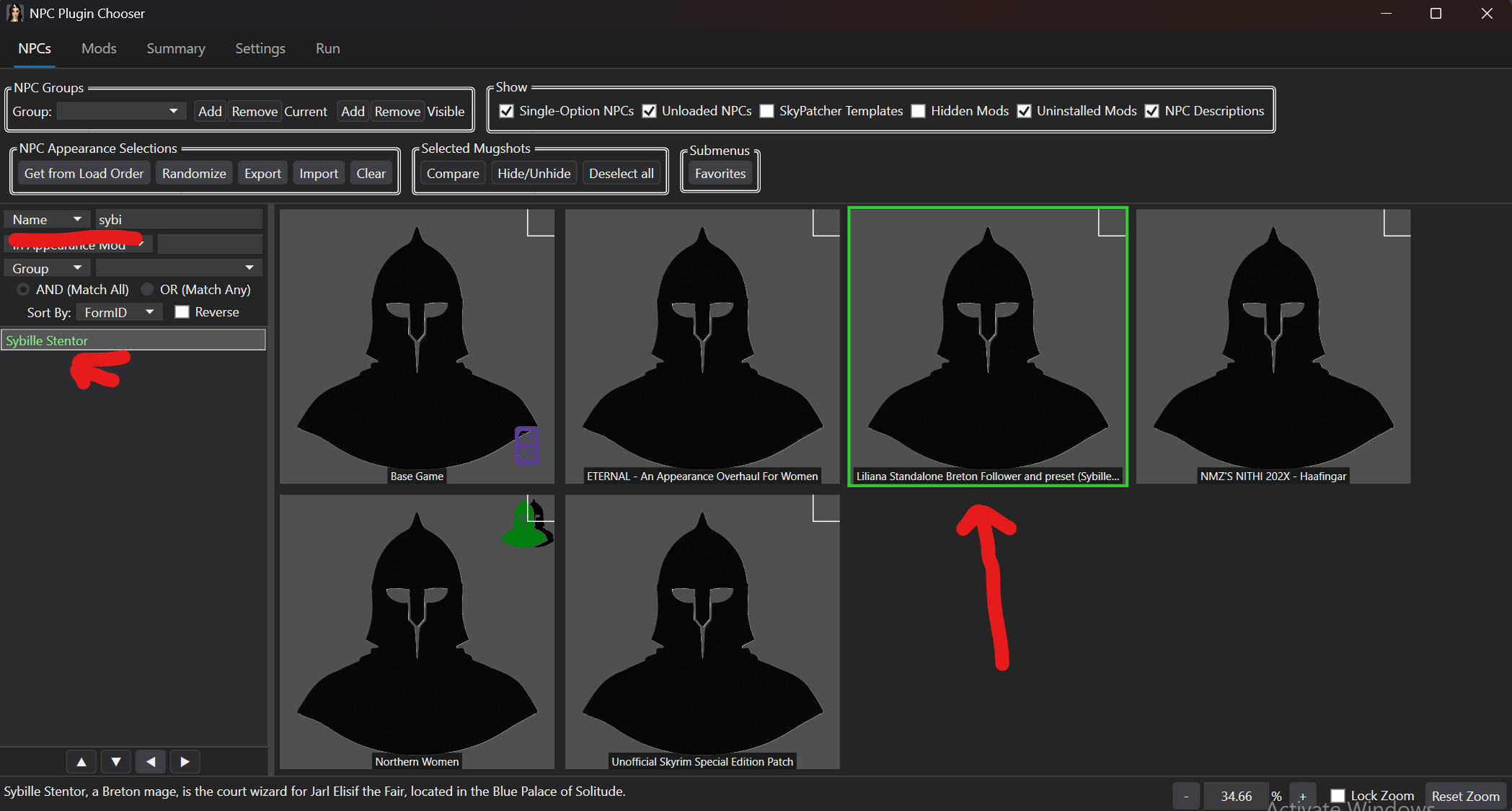
- Once you are done, go to the Run tab and press Run Patch Generation. It shouldn’t patch more than the NPCs you selected.
- Close the tool and refresh MO2. Enable your output if you made a new one.
- Ensure the
Authoria - Output - NPC Appearances.espplugin is enabled, but don’t enable anything under it yet. - Run Reqtificator, and Synthesis.
Reqtificator#
When do I need to rerun this tool?#
- Rerun the Reqtificator after adding anything that modifies NPCs, containers, leveled lists, weapons, armors — even doors. As a good rule of thumb, always rerun the Reqtificator after modifying the list.
- Rerunning the Reqtificator is NOT save safe.
- If you ignore this point, expect all guards to turn into vampires and other madness.
- You should rerun Synthesis if you rerun the Reqtificator. ParallaxGen, xLODGen, TexGen, and DynDOLOD do not need to be rerun, however.
-
On the right panel of MO2 (the plugins list), disable all the plugins that are below
Requiem for the Indifferent.esp.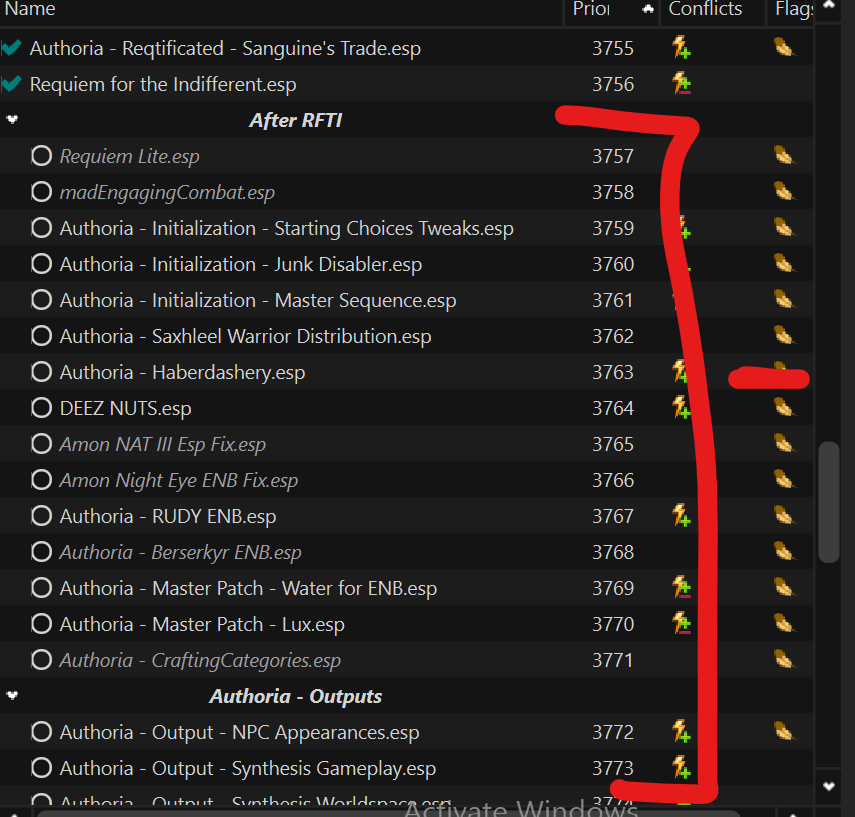
-
Pick Reqtificator from the dropdown menu of MO2 and run it.
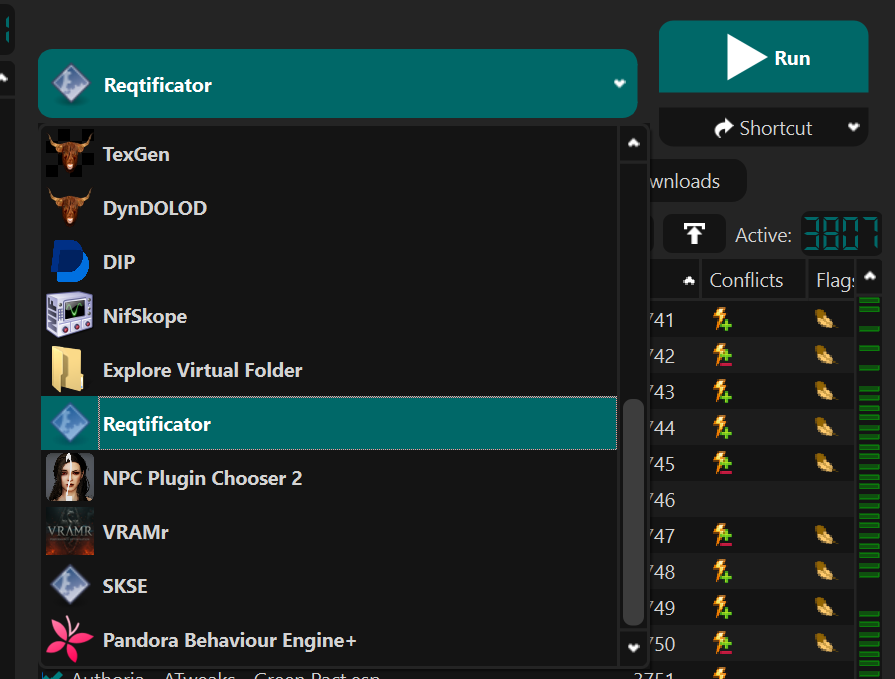
-
Tick ONLY “Automatically merge actor visuals”, then click Patch.
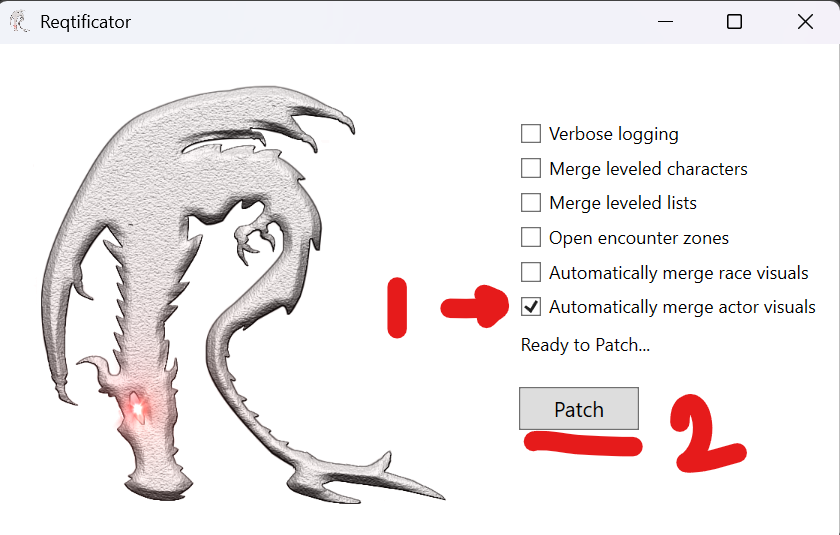
-
Wait for it to finish. It should show a success message once it’s done — press OK and you are done.
-
Re-enable the plugins below the Reqtificator until you reach
Authoria - Output - Sythesis*.esp. Keep it and everything below it disabled, then continue with the next section.
Synthesis#
When do I need to rerun this tool?#
- As a good rule of thumb, rerun Synthesis after any modification to the load order.
- Synthesis requires the latest .NET runtimes.
- as of 2.9.9 we suspect that the experience patcher applies outdated ini options, it is marginal though and shouldnt affect gameplay too much.
- Navigate to tools/sythesis, and run synthesis outside of mo2, it doesnt matter if mo2 remains open.
- Wait for all the patchers to load. If one of them errors, click on it and switch it (on both rows) from “Profile” to “Match”. Wait for it to successfully load, then change it back to “Profile”.
- Close out of synthesis, then from the dropdown menu of MO2, select and run Synthesis.
-
Hit the big Run button.
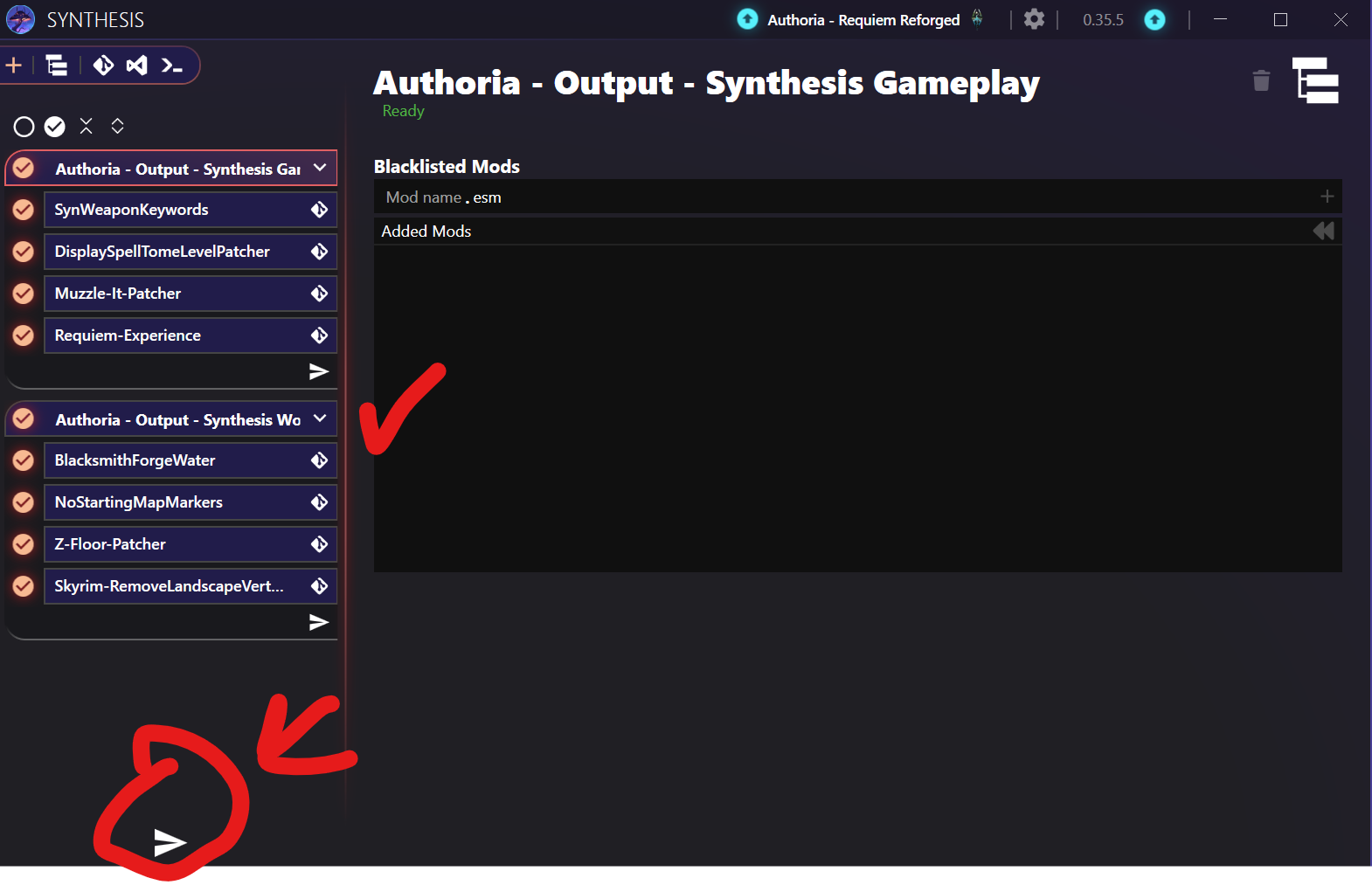
- Wait for it to finish. If it errors as soon as you run it, close Synthesis and run each patcher group separately.
- Enable the Synthesis output plugins, then enable all the remaining plugins in MO2 — or continue with the guide below if you want to run LODs.
LOD Tools#
This section walks you through generating LODs again after modifying the list. It covers:
- ParallaxGen
- Grass Cache
- xLODGen
- TexGen
- DynDOLOD
When do I need to rerun these tools?#
-
When adding mods that replace vanilla meshes and textures, ParallaxGen will most likely need to be rerun. To make sure, you can check the mod you added for conflicts. If it is losing conflicts with the ParallaxGen output, then you will need to rerun ParallaxGen.
Note: Rerunning ParallaxGen means that xLODGen and DynDOLOD will need to be rerun as well.
-
When adding mods that edit the worldspace in Tamriel — you will have to check this in xEdit. In that case, you will need to rerun ParallaxGen, Grass Cache, xLODGen, and DynDOLOD.
Disclaimer#
Running tools for Authoria is very different from the usual process. This is because the list contains Seasons of Skyrim, so expect this entire process to take at least two full days to complete.
Almost 30–40% of the list’s size comes from the outputs. They total around 160 GB, so plan accordingly.
Part 1: Preparation#
-
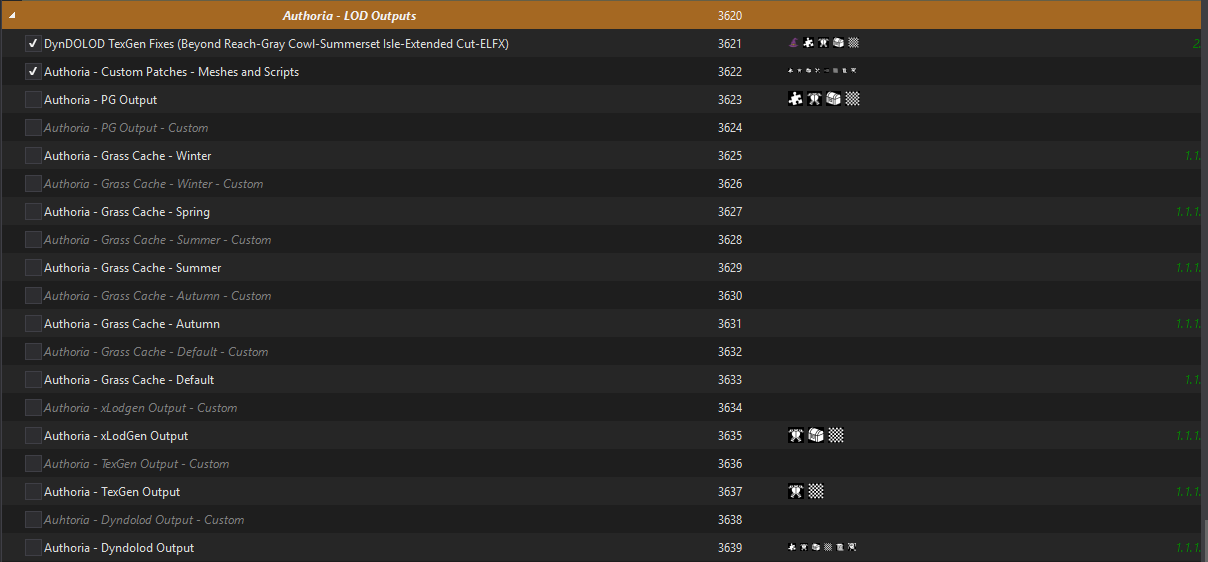
You should already have a duplicated profile created, with empty mods for the outputs that correspond to each tool. If you do not have enough space to support having two outputs, feel free to delete the contents of the current outputs and replace them.
-
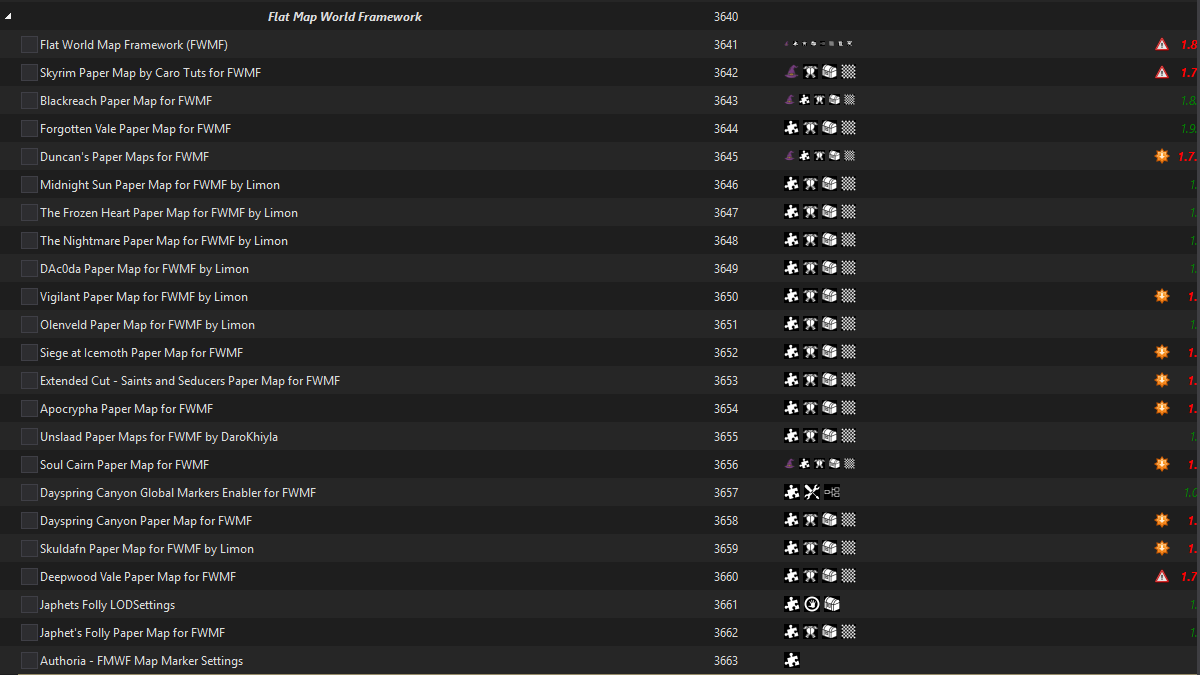
Expand the Flat Map Framework separator, and disable everything inside it.
-
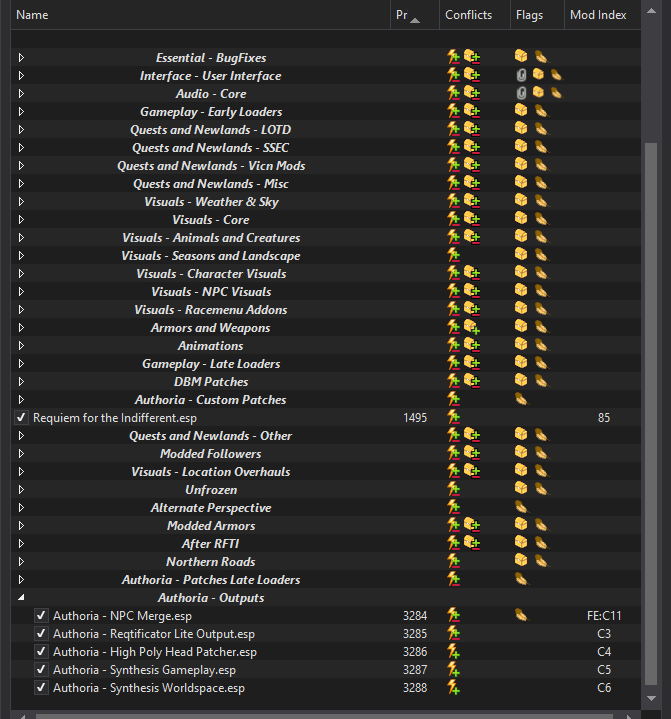
Double-check the plugin panel on the right side of MO2. The last plugins in the load order should be the Synthesis outputs.
Part 2: Running ParallaxGen#
Estimated time: 10–15 minutes
-
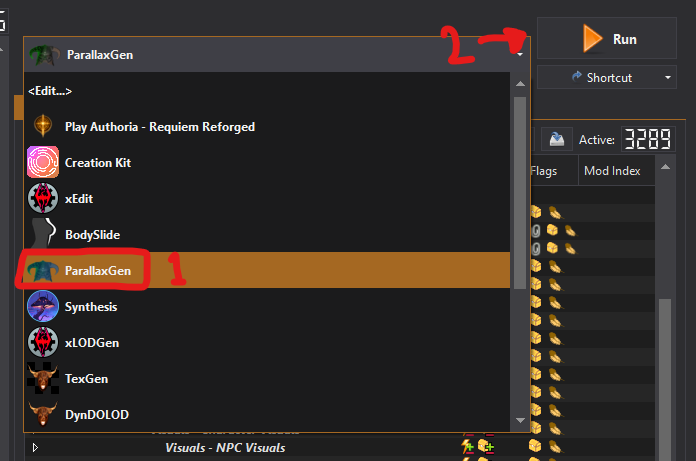
From the dropdown menu on the right side of MO2, select ParallaxGen, then click Run.
-
Make sure the settings match the following screenshot:
- The Instance Location (2) should match your Wabbajack installation directory.
- For the Output Directory (3), select the empty mod you created for the ParallaxGen output, then click Start Patching.
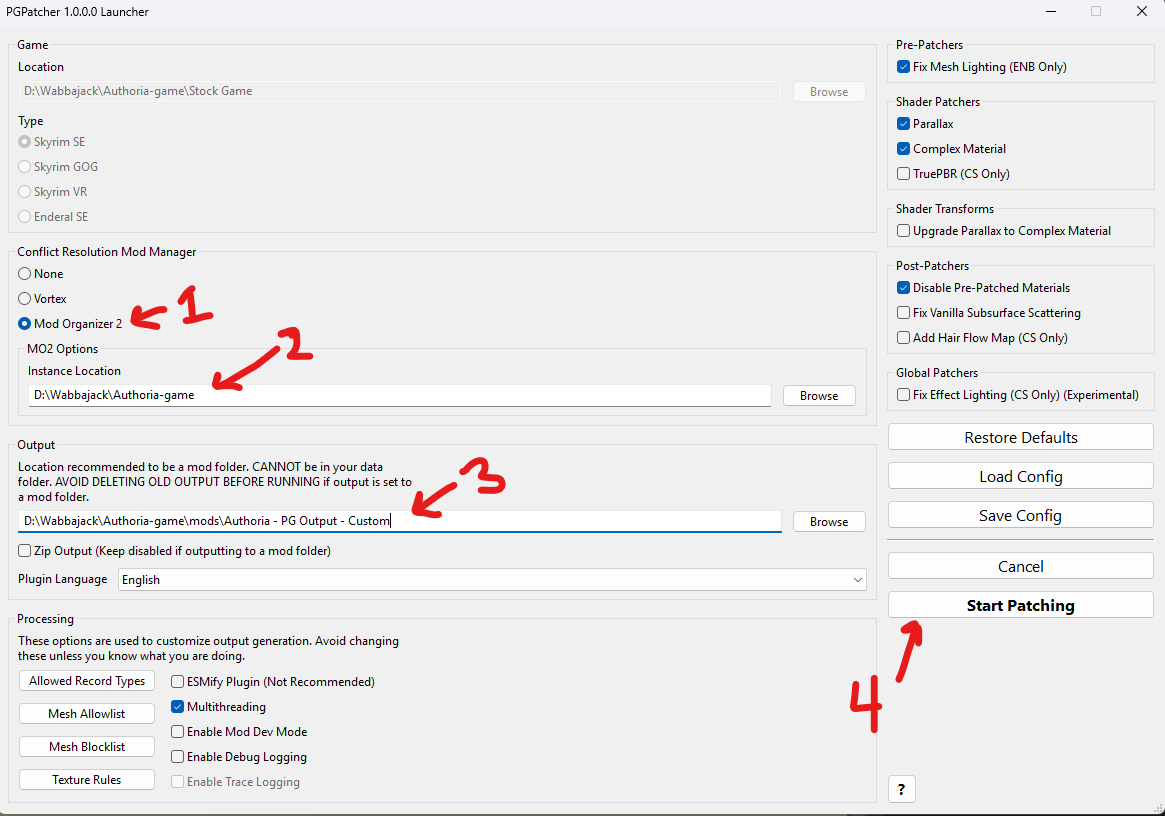
-
After some time, a popup window titled “set mods” will appear. Do not change anything, and press Okay.
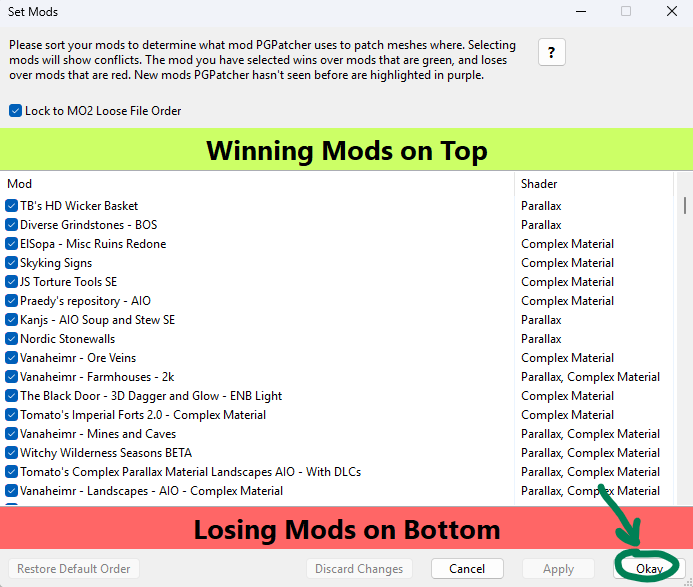
-
A new window will pop up once ParallaxGen completes. Press OK.
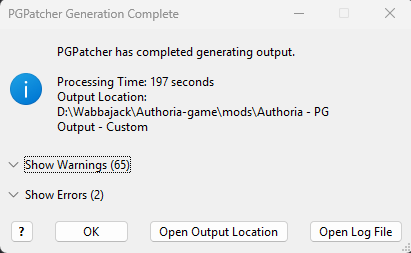
-
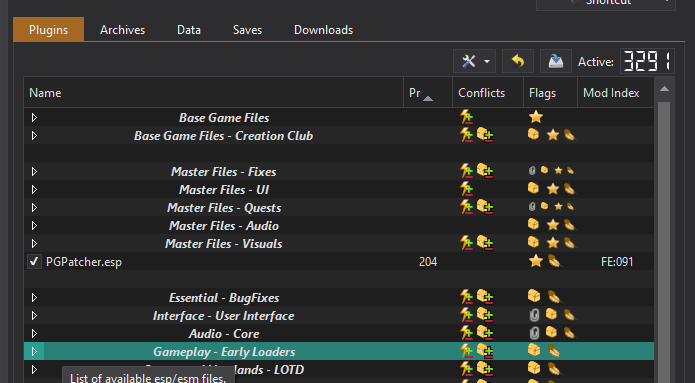
Enable your ParallaxGen output mod, and refresh MO2. Two new plugins will appear on the right side of MO2 — one at the top and another at the bottom. Enable both and place them as low as possible in the load order.
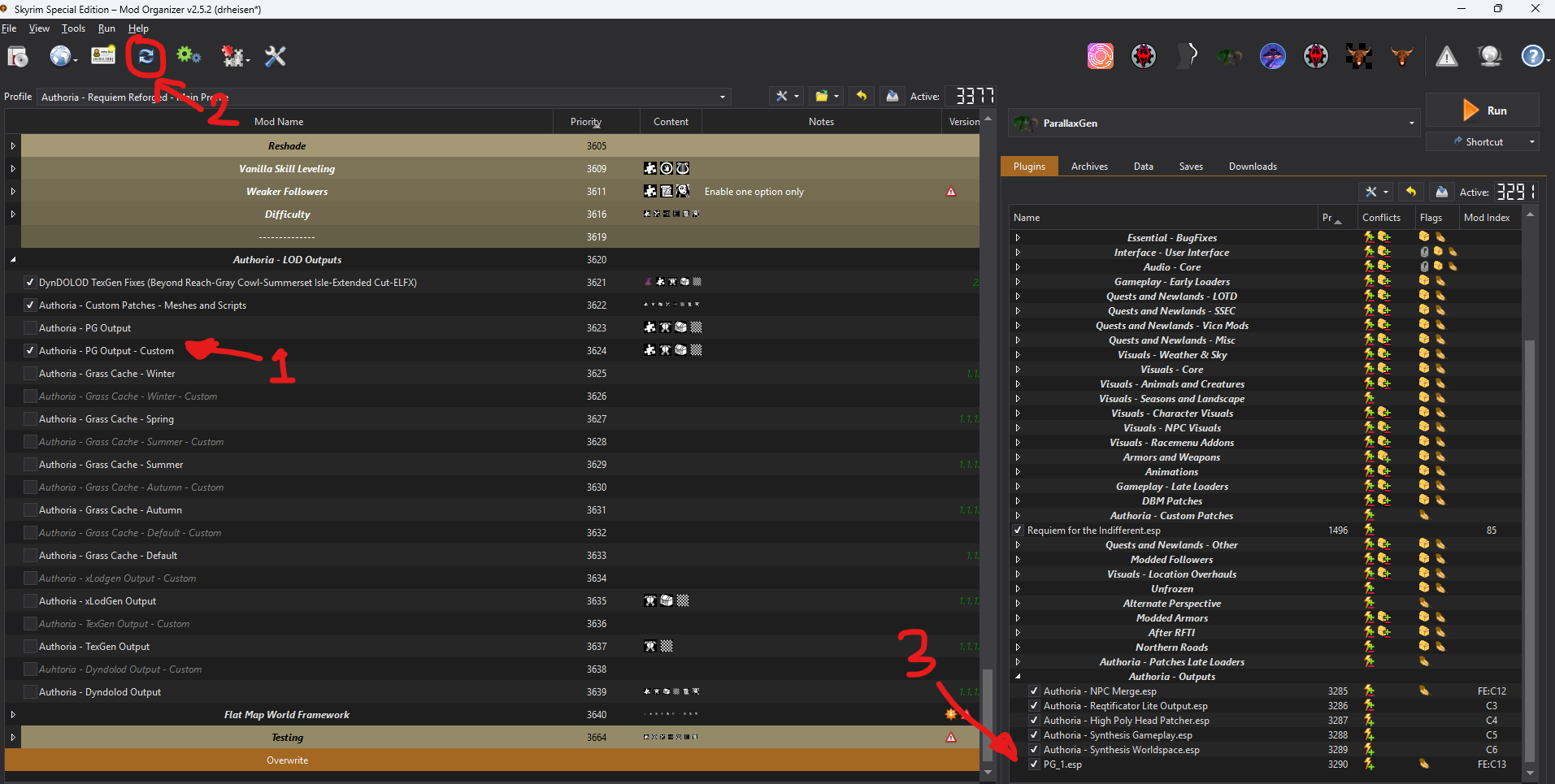
Part 3: Running Grass Cache#
Estimated time: 9–15 hours
Grass Cache should rarely need to be rerun, unless you change or add a very large location overhaul, or a mod that changes the landscape drastically.
From the author of No Grass in Objects:
When do I need to regenerate a cache?
If you change grass mods, or change your grass settings excluding grass distance, fade range, DynDOLOD mode, or extended grass distance, you will need to completely regenerate your cache for the changes to take effect.
If you add or remove mods that alter locations, add locations, or alter the landscape, you will need to regenerate a cache either for the changed cells or for the whole worldspace, depending on what is easier for you.
Grass Cache will need to be run 5 times in total — once for each corresponding season.
-
To get started, follow this guide starting from the 4:33 mark up until 9:50. In Authoria, the
Grass Bounds.espplugin is calledDeez Nuts.esp.Warning: Do not change any Grass Control INI settings other than
only-pregenerate-world-spacesif you do not know what they mean. -
Once
GrassControl.iniis sorted, disable the Grass Cache Helper NG mod in MO2, then enable the No Grass In Objects mod.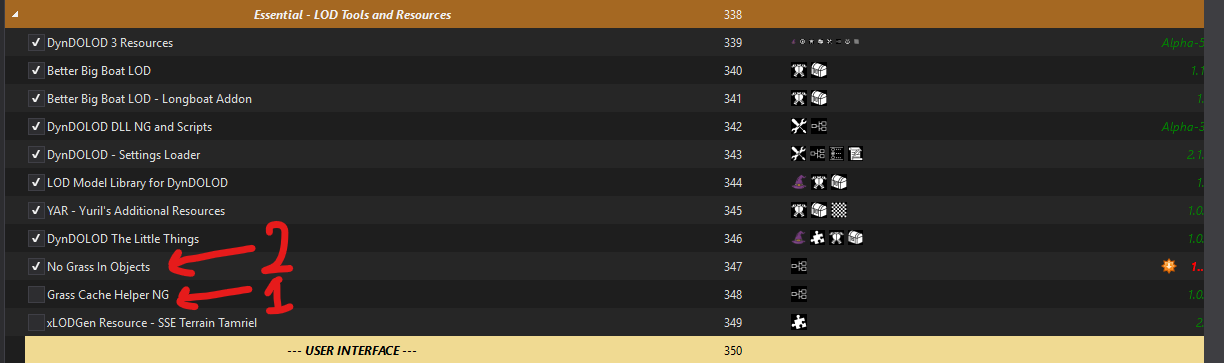
-
Disable the following mods in MO2 to prevent crashing while generating Grass Cache:
- Auto Parallax
- Discord Rich Presence
- TrueHUD → only disabling the plugin on the right panel is enough
- Skyrim Souls → take note of the plugin load order




-
Navigate to the Data tab of MO2, and search for
po3_seasonsofskyrim.ini. Right-click on it and choose Reveal in Explorer.IMPORTANT: If you added a new worldspace and it has Seasons of Skyrim support, then you should delete
po3_seasonsofskyrim.iniand let the game generate a new one by launching the game and getting to the main screen.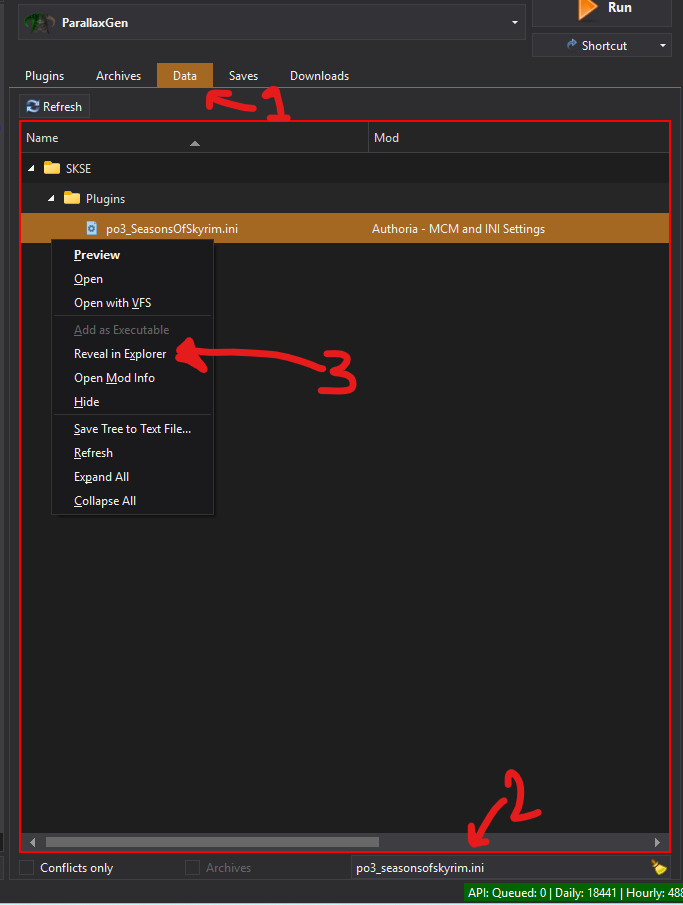
-
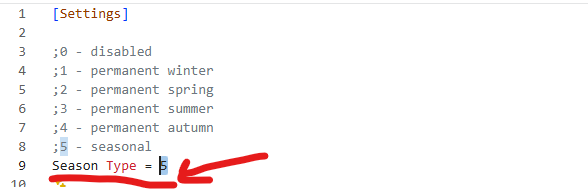
Open the Seasons of Skyrim INI, and select the season you will generate Grass Cache for. Start with 0 (disabled), then save and close the file.
-
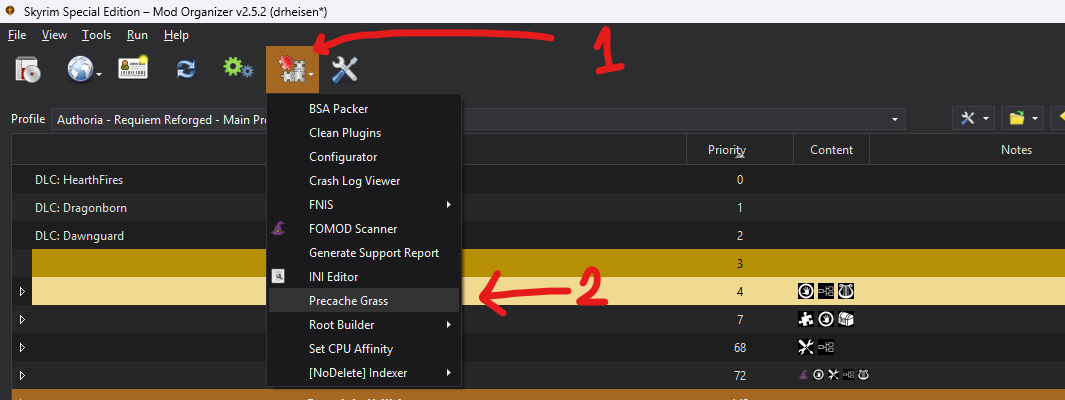
Go back to MO2, click the jigsaw icon on the top right, and press Precache Grass to start the process. You will get a notification window — press Yes.
-
It will take 2–3 hours for the process to complete. Once it is done, you will get a notification window saying that Grass Cache has generated successfully. Press OK, then navigate to the overwrite directory in MO2. There should be a folder called “grass” in your overwrite — move it to “Authoria - Grass Cache - Default”.
-
To generate the seasonal Grass Cache, go back to
po3_seasonsofskyrim.ini, change the Season Type to 1 (winter), save and exit, then do the exact same process as the two steps above. -
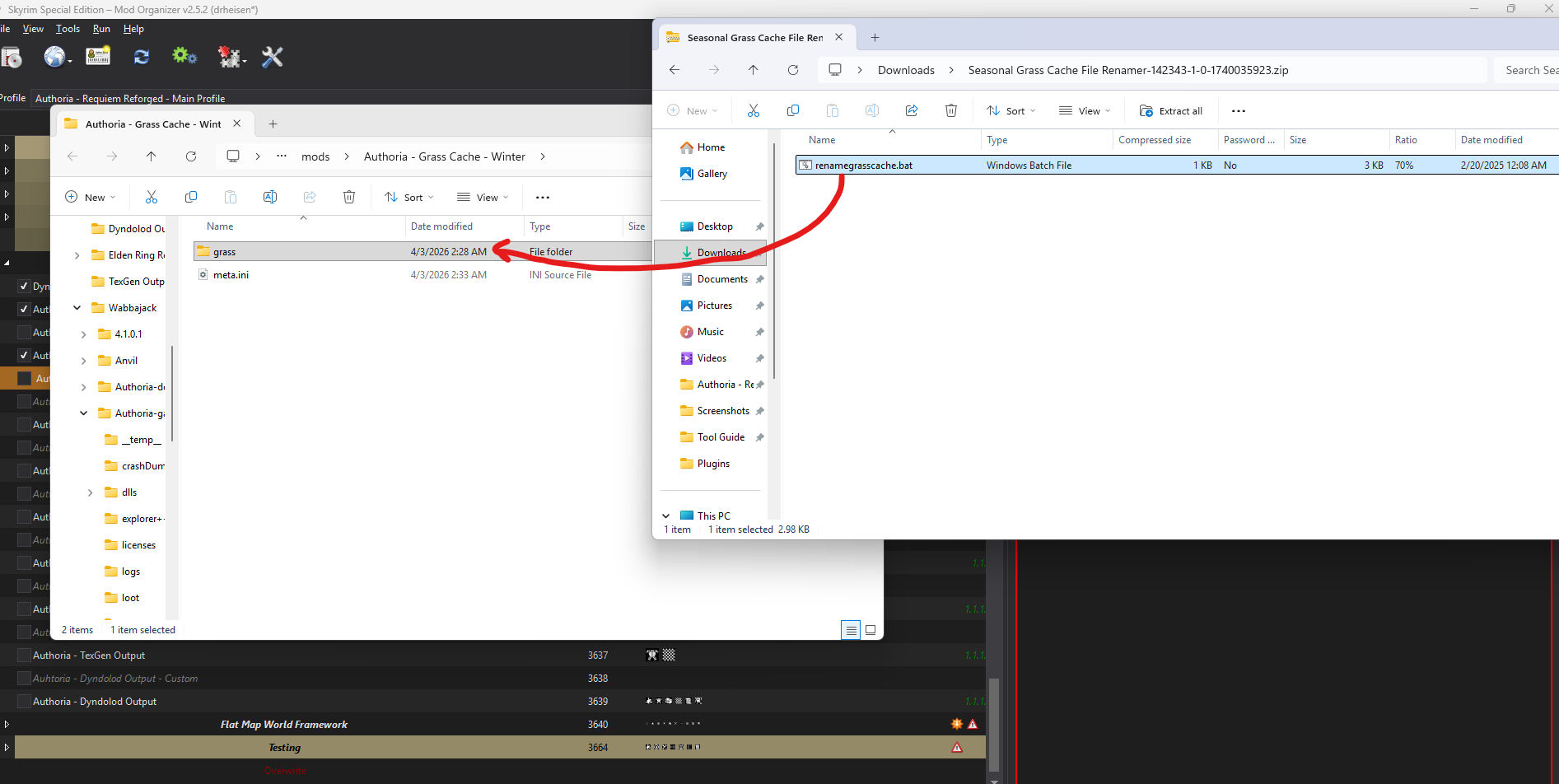
Once it is done, and after moving the winter Grass Cache to the “Authoria - Grass Cache - winter” mod, manually download the Seasonal Grass Cache File Renamer (like Seasons your Grass) and place it anywhere outside of the Wabbajack installation.
-
Extract the Grass Renamer archive into your winter Grass Cache folder.
-
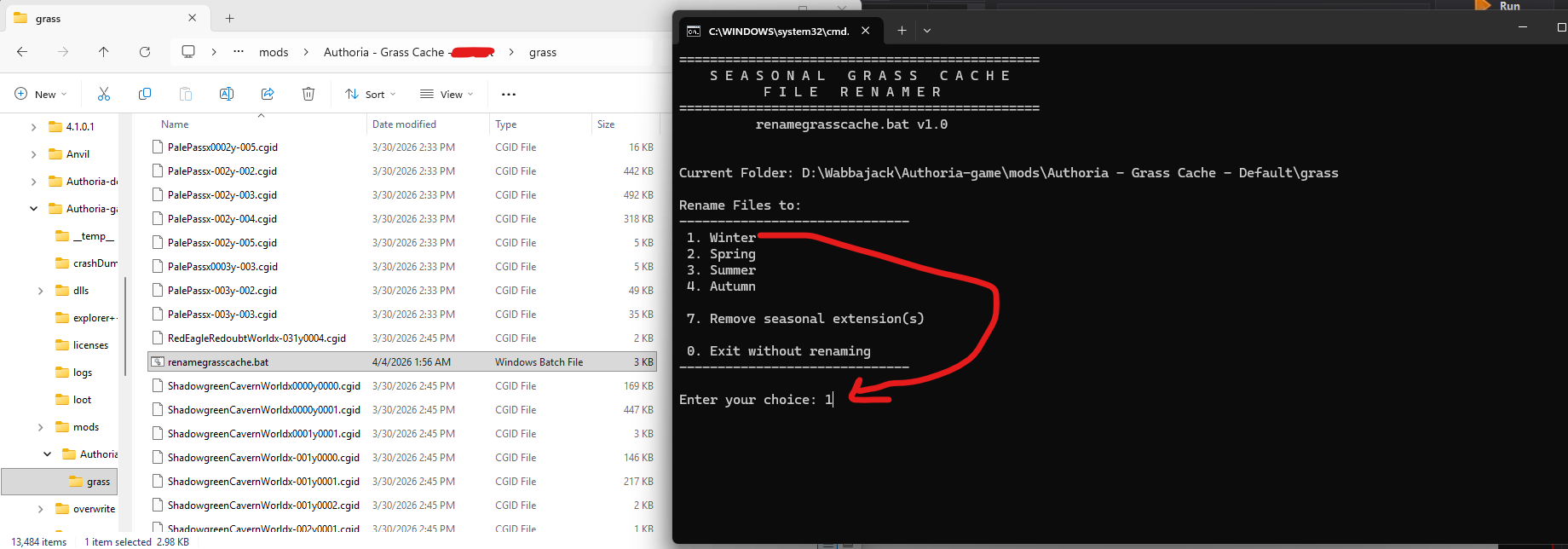
Run the Windows batch file, and enter the number that corresponds to the season you just generated (1 for winter).
-
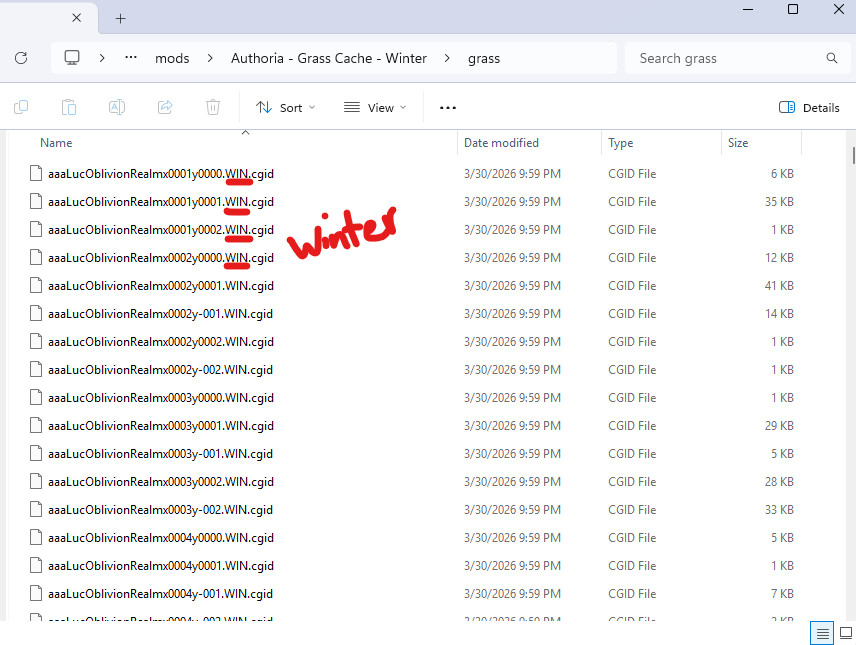
It will take some time to rename every file. Once it is done, press Enter to close out of the batch file. The Grass Cache should now have a suffix corresponding to the season you just generated.
-
Repeat the same process for Summer, Spring, and Autumn.
-
Once you are done, re-enable and re-sort all the mods that you previously disabled, then disable No Grass in Objects and enable Grass Cache Helper NG.
Part 4: Running xLODGen#
Estimated time: 4 hours
xLODGen has to be run two times — once for the default worldspaces with no seasons, and another time for worldspaces with seasons.
-
First, search for the “xLODGen Resource - SSE Terrain Tamriel” mod and enable it.

-
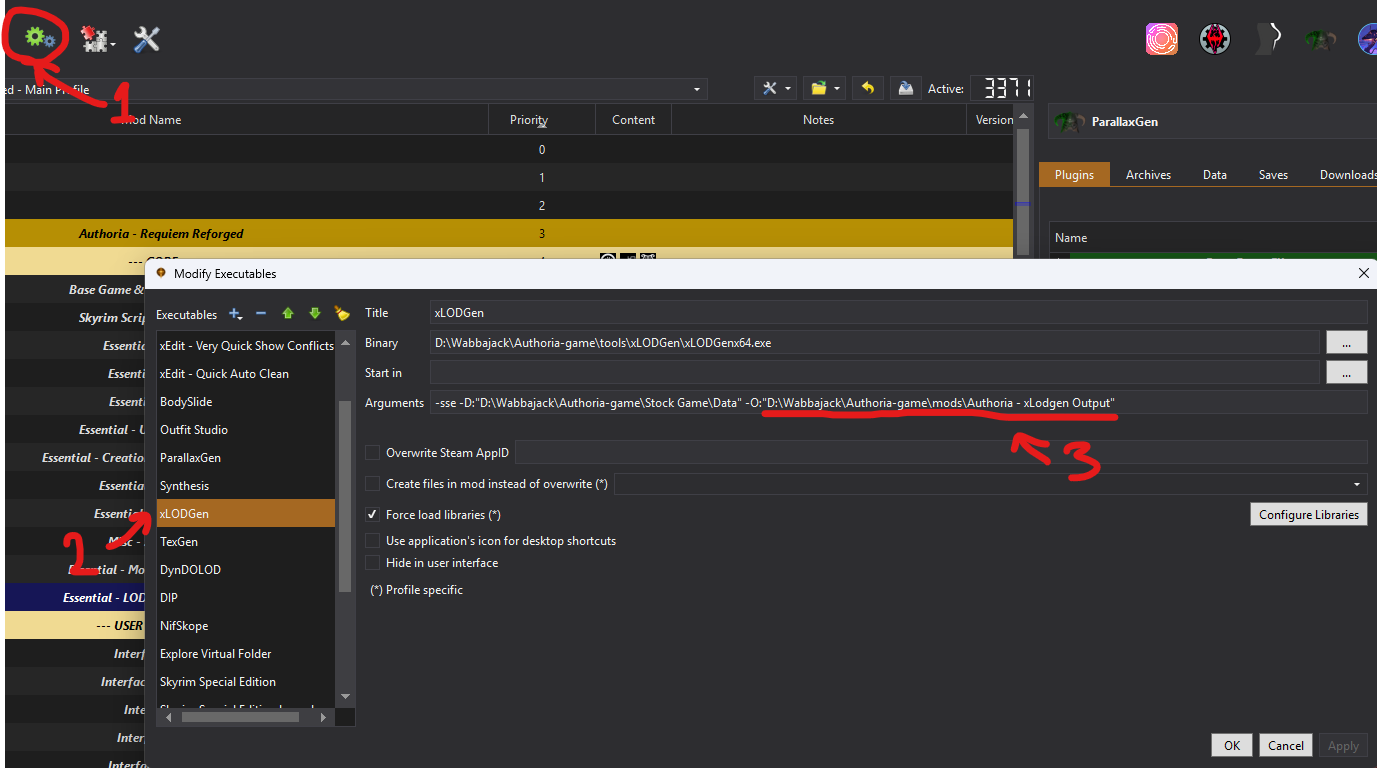
Then click the gear icon in MO2, navigate to xLODGen, and change the output directory of xLODGen there. Click Apply, then OK.
-
For the first run, we will generate non-seasonal xLODGen. Pick xLODGen from the dropdown menu of MO2 and run it.
-
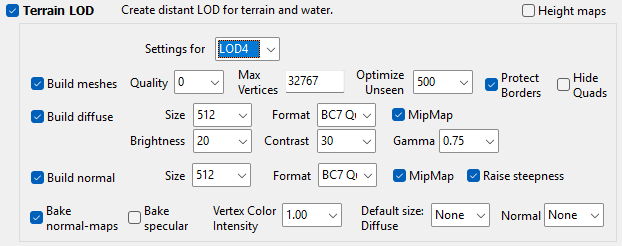
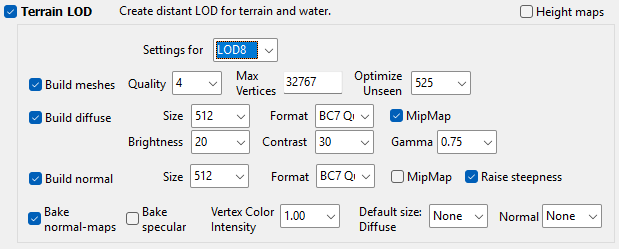
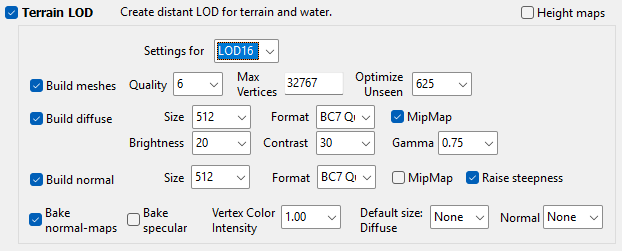
Once xLODGen loads up, tick only “Terrain LOD”, then configure the settings for every LOD level exactly like the pictures below.
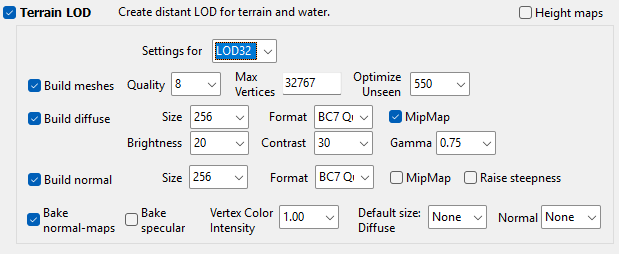
-
Right-click on the checkbox window and press Select All, then from the Seasons dropdown menu, select only “Default”.
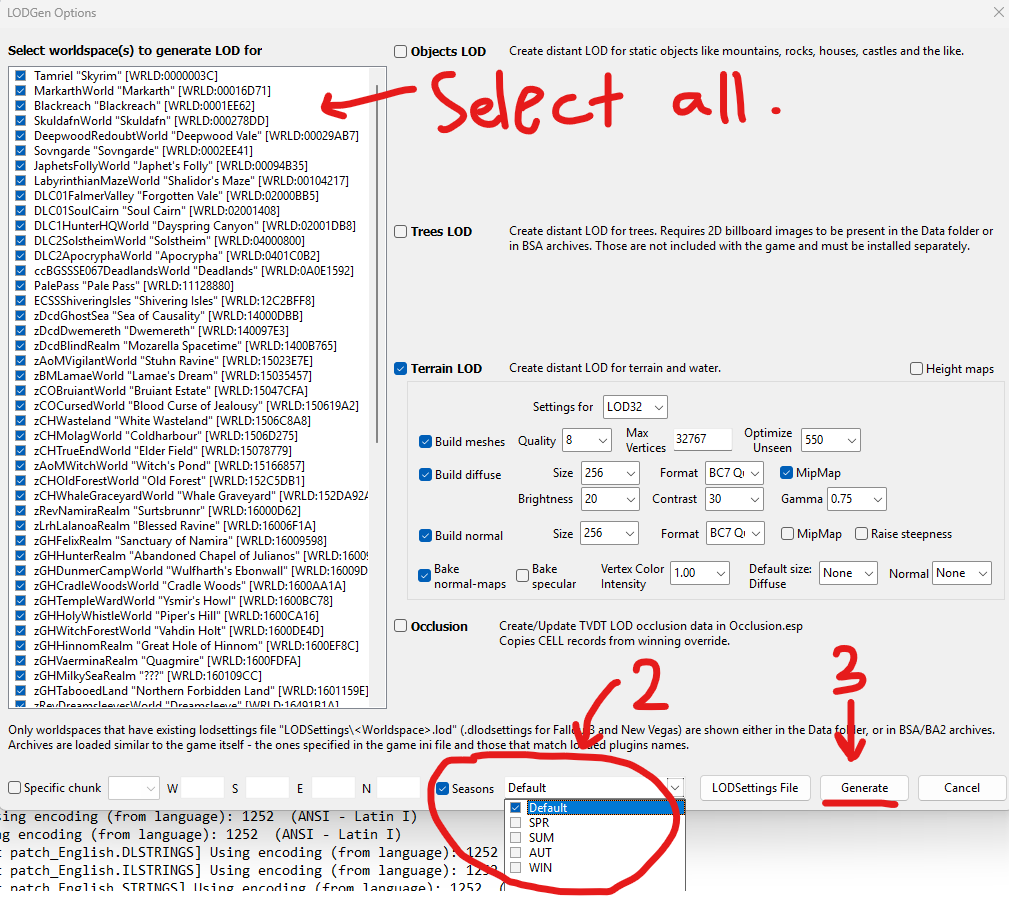
-
Finally, click Generate. Once it is done, it will say “LOD Generation Done.” Close out of xLODGen.
-
To know which worldspaces are seasonal, open
po3_seasonsofskyrim.iniand find the “Valid Worldspaces” line.IMPORTANT: If you added a new worldspace and it has Seasons of Skyrim support, then you should delete
po3_seasonsofskyrim.iniand let the game generate a new one by launching the game and getting to the main screen.
Copy these into a blank text document. Keep in mind that not every worldspace here will be in xLODGen, but you have to select every worldspace that appears both in that list and in xLODGen. The following is the list for Authoria:
Tamriel MarkarthWorld| SkuldafnWorld| DeepwoodRedoubtWorld| JaphetsFollyWorld| DLC01FalmerValley| DLC1HunterHQWorld| DLC2SolstheimWorld| PalePass| zCOBruiantWorld zAoMWitchWorld| zAoMVigilantWorld| WyrmstoothWorld| AXGodsforsakenRockWorld| AXOffshoreIslandWorld| BSHeartland| -
Run xLODGen again, and select the worldspaces that are in
seasonsofskyrim.ini. Then, from the Seasons dropdown, select everything except Default, and press Generate. (LOD level settings are the same.)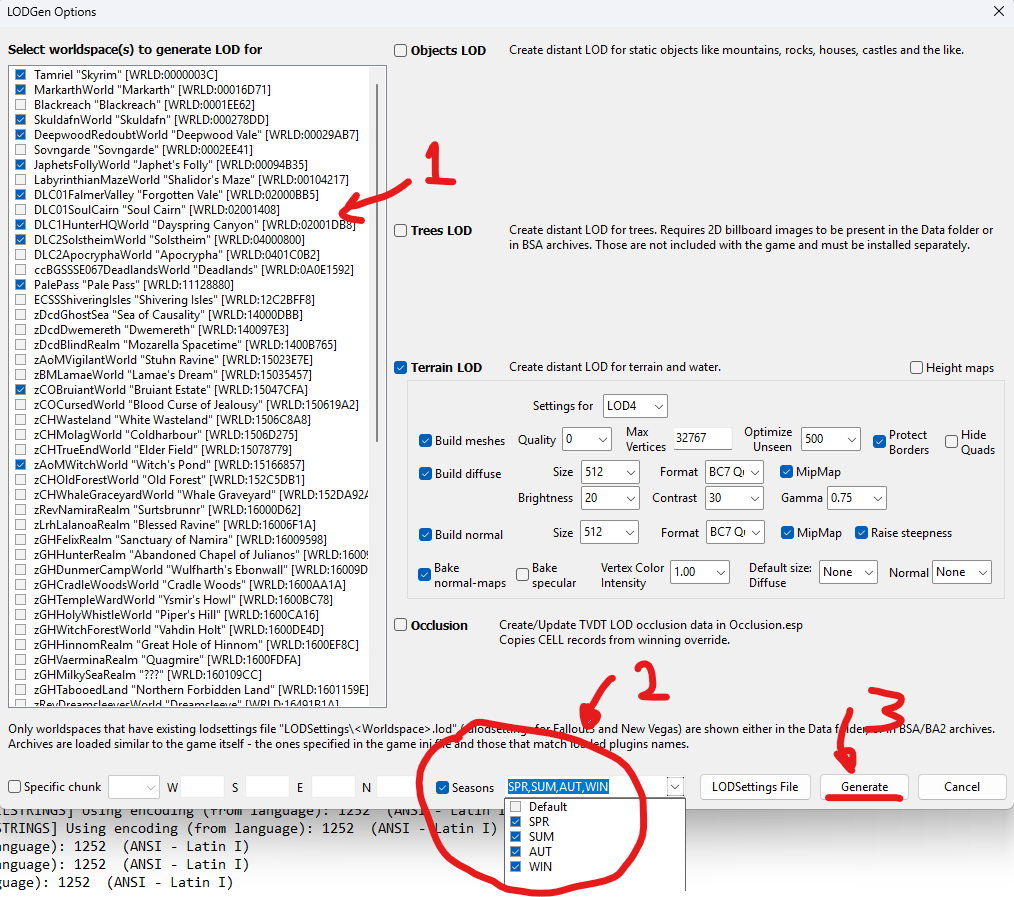
-
Once it is done, it will say “LOD Generation Done.” Close out of xLODGen. Don’t forget to disable “xLODGen Resource - SSE Terrain Tamriel” and enable your output.
Part 5: Running TexGen and DynDOLOD#
Estimated time: 6 hours — highly depends on your grass density percentage.
IMPORTANT: DynDOLOD is extremely sensitive in seasonal load orders. The following are steps to ensure DynDOLOD generation completes without errors near finishing:
a) If you added mods, make sure none of them have deleted references, missing scripts, or references in the wrong worldspaces.
b) Navigate to your Wabbajack installation directory and open the
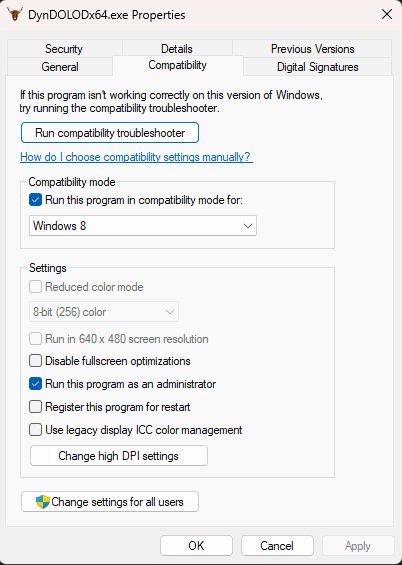
Toolsfolder, then thedyndolodfolder. Right-click on it and pick Properties, click on Compatibility, and copy the following settings. Then make sure you run MO2 as administrator.
c) Before running TexGen or DynDOLOD, turn off Real-Time Protection inside Virus & threat protection in the Windows 11 settings.
e) Most importantly, make sure the output of both TexGen and DynDOLOD goes to the root of the drive you are using, preferably avoiding the C drive — for example:
D:/Dyndolod Output.
-
If you reinstalled the Lux patch hub, remove the Bittercup Tweaks and Enhancements Lux patch if it got installed.
-
If you are using Witchy Wilderness: navigate to your Wabbajack directory, open the
Toolsfolder, thendyndolod > Edit Scripts > Dyndolod > DynDOLOD_SSE.ini. Apply the following edits to the DynDOLOD INI, then save and exit.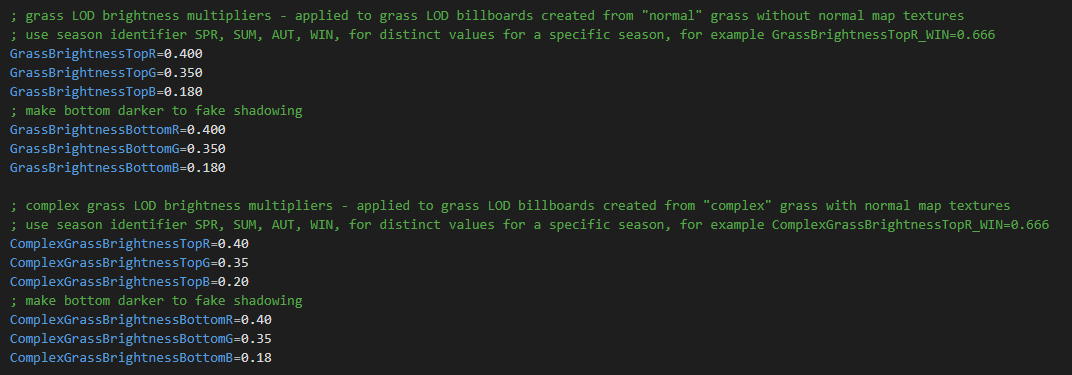
-
Back in MO2, pick TexGen from the dropdown menu of MO2 and run it. Apply the following settings, and generate.
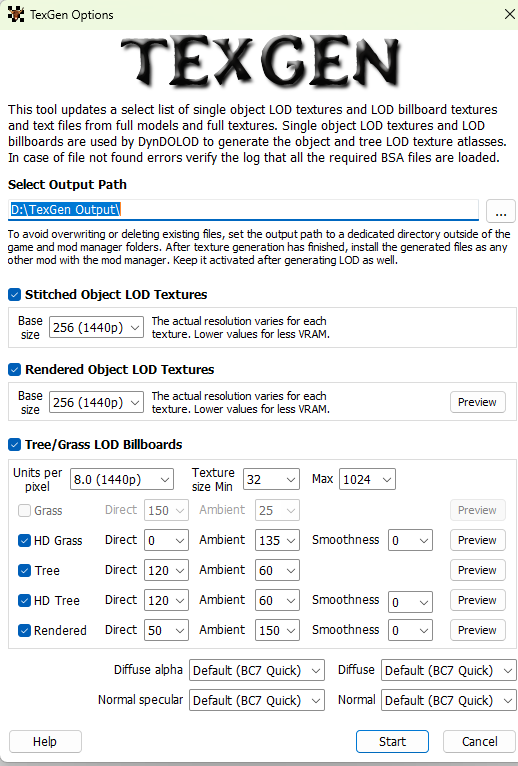
-
Once it’s done, select “Exit TexGen”, navigate to your output folder, and copy all the contents inside of it to your TexGen output mod in MO2. Then refresh MO2.
-
Pick DynDOLOD from the dropdown menu of MO2 and run it. Press Advanced:
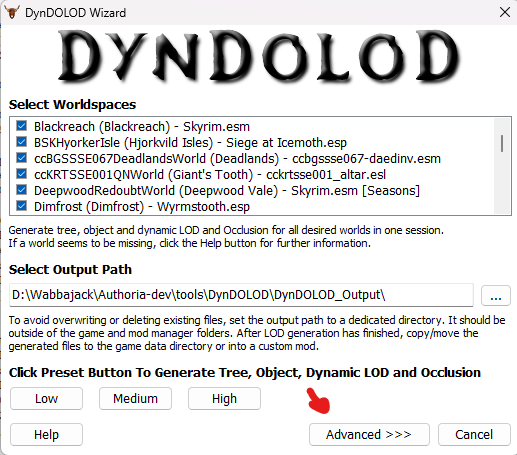
-
Right-click on the top-left menu and press “Select All”, then apply the following settings. You can play with the grass density percentage if you want, but beware that it will increase generation time and output size by a lot. Once you are done, press Generate.
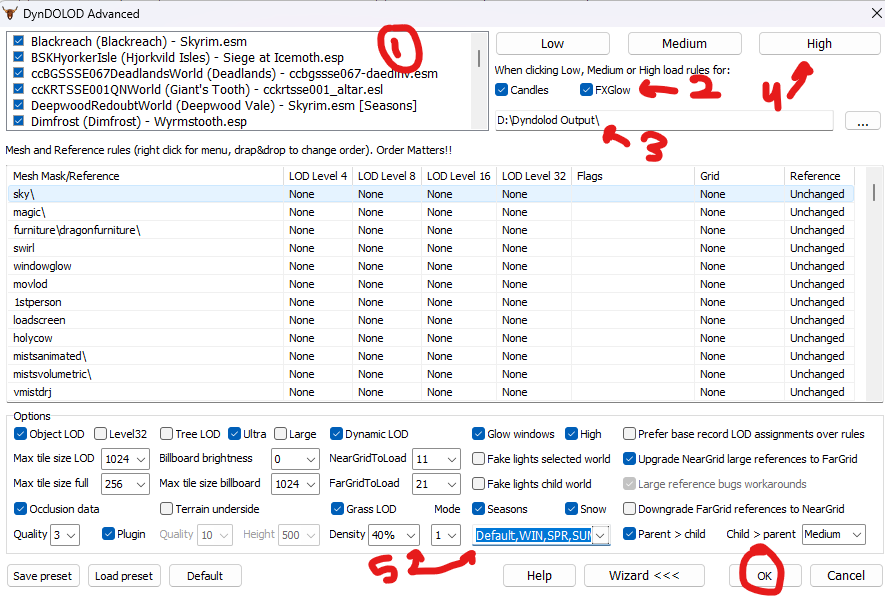
-
Once it’s done, navigate to your output folder, and copy all the contents inside of it to your DynDOLOD output mod in MO2. Then refresh MO2.
Part 6: Flat Map Framework#
-
Expand the last separator on the left panel of MO2, enable every mod in there, then sort them like the picture.
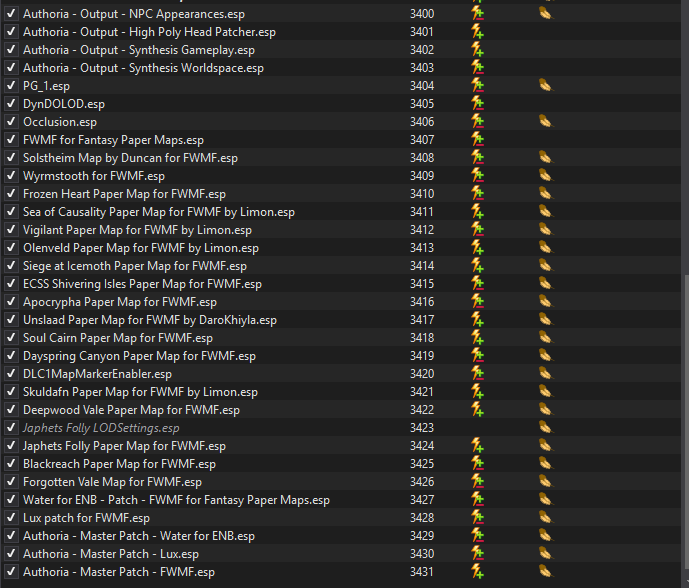
And that’s it — you can enjoy sexy seasonal LODs now.